
 No result could be found!
What is the Battlefield 6 Secure Boot Error and How to Fix It?
For those experiencing the Battlefield 6 Secure Boot error, we are sharing the cause of the problem and detailed solutions with you.
In video games, especially in FPS titles, new software is constantly being developed to combat cheaters. Particularly in the 2020s, traditional anti-cheat programs have been gradually replaced by newer solutions that operate at deeper levels of the computer. The upcoming Battlefield 6 also utilizes a similar software. However, to use it, certain features must be enabled beforehand. In this guide, we share the Battlefield 6 Secure Boot error and its solutions with you. Without further ado, let’s focus on resolving the issue.
Why Does the Battlefield 6 Secure Boot Error Occur?
Battlefield 6 uses a special anti-cheat software called Javelin. This software operates at the kernel level of your computer. Therefore, it needs access to more of your computer’s features and must be able to prevent possible cheats through motherboard components. To enable this, the Secure Boot feature in your computer’s BIOS must be turned on. If this feature is not enabled, the game will not run. In this case, the game displays an error window known as the Battlefield 6 Secure Boot error.
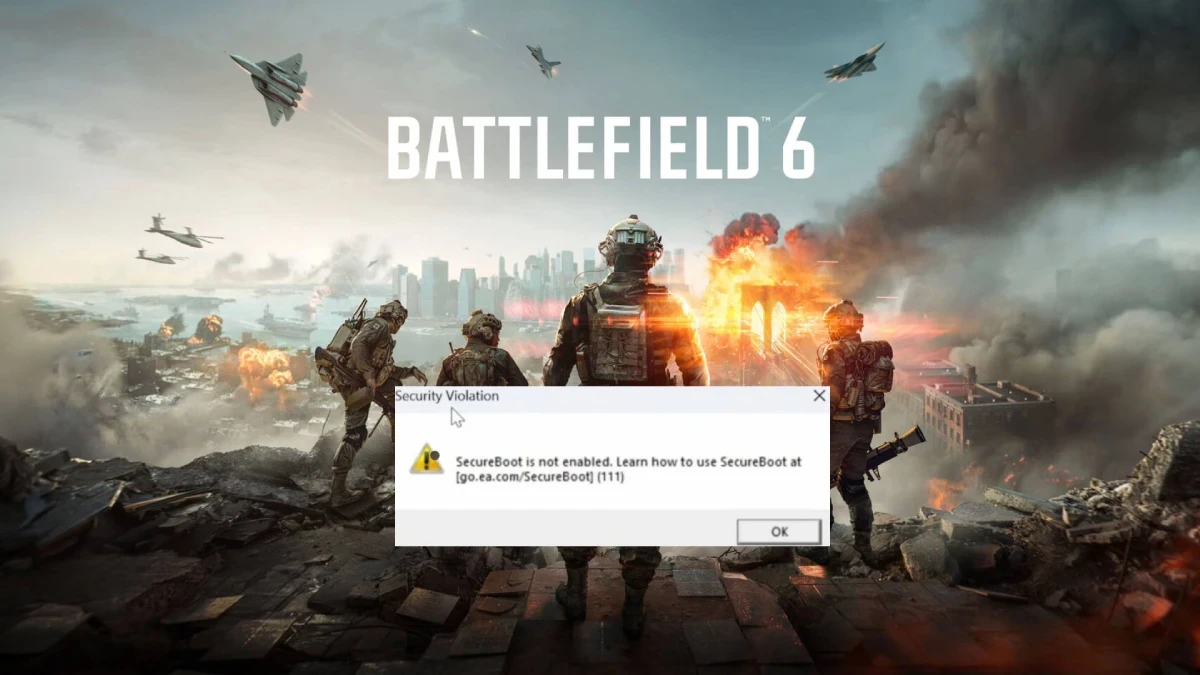
The cause of the error is simply that the Secure Boot setting in the BIOS is not enabled. To fix this, the setting needs to be switched to "Enabled." For those who are not very familiar with computer systems, this might seem confusing, but it is actually quite simple. In the continuation of this article, we will show you how to enable Secure Boot.
How to Enable Secure Boot
Before enabling Secure Boot, you need to know how to access the BIOS. For this, you must find out the brand of your motherboard. If you are using a laptop, the motherboard brand is usually the same as your laptop brand. However, if you are using a desktop PC, you will need to identify the motherboard model. The easiest way to do this is by looking at the logo that appears on the screen when the computer starts up. Usually, the logo and name of the motherboard manufacturer will be displayed.
Once you know your motherboard brand, you can enter the BIOS during the boot process by pressing the appropriate key. You can refer to the table below to see the common keys for different motherboard manufacturers:
| ASUS | HP | Lenovo | DELL | Acer |
|---|---|---|---|---|
| F2/DEL | ESC/F10 | F1/F2 | F2 | F2 |
Most motherboards use the DEL key as the default for BIOS access. If you do not know your motherboard manufacturer, you can try using this key. Once you have entered the BIOS, follow these steps to resolve the Battlefield 6 Secure Boot issue:
Navigate to the "Boot" tab in the BIOS interface.
Find the "Secure Boot Mode" setting or a similarly named option.
Change the setting to "Enabled."
If the setting cannot be changed, locate "Legacy Boot" or "CSM" and set it to "Disabled."
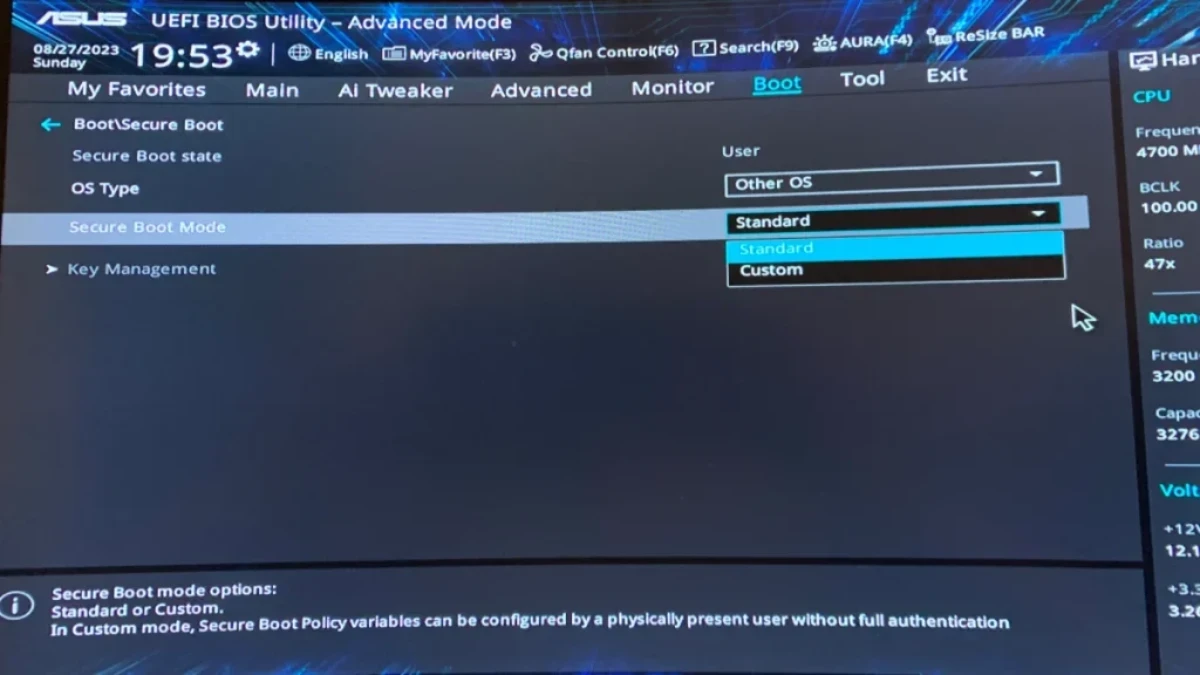
If the settings known as Legacy Mode or Compatibility Support Mode (CSM) are enabled in the BIOS, you will not be able to change the Secure Boot setting. These settings are used to support older operating systems (Windows 7 and earlier). Therefore, in 2025, with Windows 11 becoming increasingly standard, you generally do not need to use these settings.
The Battlefield 6 Secure Boot error was particularly troublesome for players during the open beta period. As the highly anticipated FPS game draws closer, we have shared the steps you can take to avoid this issue. If the game interests you, you can also check our Battlefield 6 system requirements article to learn the technical details before its release. Additionally, to explore the history of the series, don’t forget to read our chronological article on Battlefield games. We wish everyone an enjoyable gaming experience!